Branch mode vs Stack mode

Git Navigator can treat your recent work as independent branches or as a stack of commits. The difference matters when you edit history. This page explains and compare how both options work.

Back to the main page

Branch mode

Think of each branch as its own lane. When you change a commit, Git Navigator updates only the branch you are working on, and keeps the graph compact.

main     A -> B -> C -> D
          \
feature    E -> F -> G (feature tip)


amend F (branch mode):

main     A -> B -> C -> D
          \
feature    E -> F -> G (feature tip)
             \
              F' (detached)

Only the branch tip stays at G. The amended commit F' is not on the branch.

  • Good when branches are shared or long-lived.
  • Changes stay local to the branch you touched.
  • Safer if you are not sure who else uses the commits.
  • Lower risk of surprising teammates or CI.
  • Less likely to require force-pushes on shared branches.

Stack mode

Think of your recent work as a stack of commits sitting on top of a base branch (usually main). If you edit one commit, everything above it in the stack is updated too, and the graph stays fully expanded.

main     A -> B -> C -> D
          \
feature    E -> F -> G (feature tip)


amend F (stack):

main     A -> B -> C -> D
          \
feature    E -> F' -> G' (feature tip)

G is rebased onto F' to create G', so the chain stays connected.

  • Great for a series of small, dependent changes.
  • Keeps your stack consistent after reword, squash, or reorder.
  • Makes it easier to clean up history before sharing.

What actually changes when you edit a commit

Branch mode

Only the branch tip you are on is rewritten. Other branches that happen to include that commit are left alone.

Stack mode

Git Navigator rewrites the commit and then updates any descendant branches so they continue to point to the rewritten history.

How to choose

Stack workflows usually review commits one by one, so going back to amend an earlier commit is normal. Branch-mode workflows usually review the branch as a whole, so you typically add new commits instead of rewriting old ones.

  • Use branch mode if you are working on a shared or long-lived branch.
  • Use stack if you are building a short sequence of commits that depend on each other.
  • If you plan to rewrite history often (amend, squash, reorder), stack mode is smoother.
  • If you are unsure, start with branch mode. You can switch later.

How Git Navigator uses stack mode

Stack mode is stored per repository. Git Navigator uses a base reference (by default, your default branch) and treats commits from that base to your current work as one stack.

When you amend, rebase, or squash in stack mode, Git Navigator updates the rest of the stack so everything stays connected and consistent.

If you are new to Git

You do not have to pick a mode permanently. The safest mental model is: branch mode is "change only what I can see," and stack is "change this and everything built on top of it."

If you are still unsure, ask a teammate which workflow your project expects.

Visual examples

Drag-and-drop Rebase

Branch mode
On branch mode, you drag the tip of a branch to rebase the branch and it's parent commits onto the new location. (Git automatically calculates the merge base.)
Stack mode
On stack mode, you drag the base you want to rebase all of it's children and the entire descendant tree onto the new location. (All branch refs are updated with the rebase.)

Amend

Branch mode
Amending on branch mode creates a new branching commit
Stack mode
Amending on stack mode automatically rebases the rest of the stack onto the new change

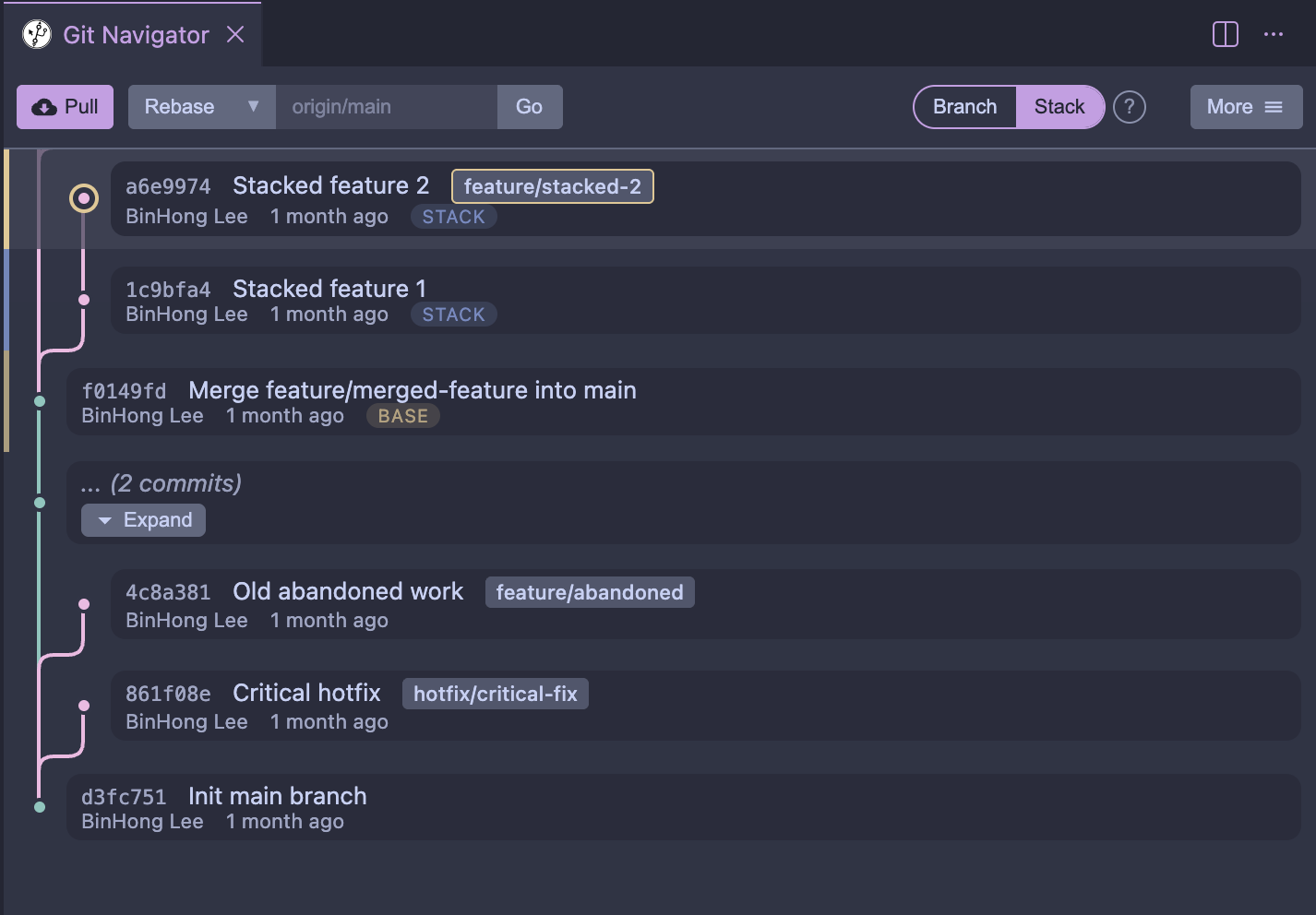
Graph View

Branch mode
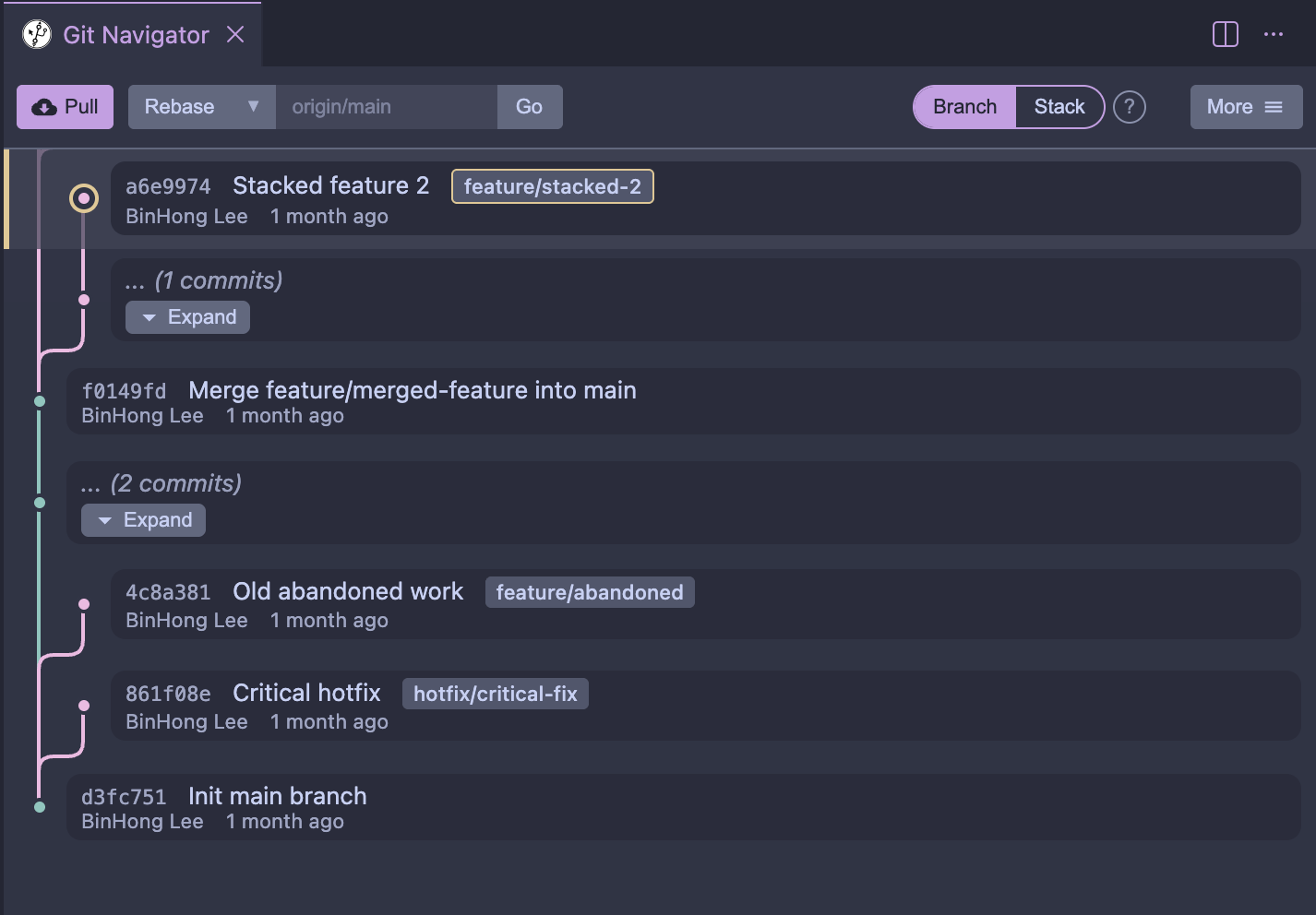
Branch mode compact graph view
Compact graph view
Stack mode
Stack mode full graph view
Full graph with stack highlights

[Advanced] Detailed comparison

Graph visualization

Aspect Branch mode Stack mode
Commits shown Branch tips only (collapsed view) Full graph
Collapsed commits Expandable placeholder (like default branch) All visible
Visual highlighting No stack highlighting Stack commits highlighted, base marked
Stack badges Hidden Show stack depth badges
Default branch ancestors Collapsed (placeholder) Collapsed (placeholder)

Drag-and-drop behavior

Aspect Branch mode Stack mode
What you drag Branch tip Base of a subtree
What moves Single branch Entire subtree
Preview shows One branch rebasing Subtree moving with all affected branches

Operations

Operation Branch mode Stack mode
Amend Current commit only Updates the stack above it
Squash Current branch only Squashes a stack and keeps it connected
Split Only allowed on branch tips Allowed on any stack commit
Rebase One branch at a time Moves the stack together
Conflict resolution Same UI, standard rebase flow Same UI, stack-aware rebase flow