Pull, with the strategy you actually want
Git Navigator's pull button is a split control: the primary action is a one-click pull, and the dropdown reveals three explicit strategies. Rebase against the default branch to keep a long-lived feature on top of main; rebase against the current branch's upstream for a routine sync; or merge if your team prefers merge commits on long-lived integration branches.

Three pull modes, one button
Default-rebase keeps features on top of main
The primary mode (Pull - main) fetches and rebases the current branch onto origin/main. Perfect for long-lived feature branches that need to stay current with the default branch.
Current-rebase syncs the upstream
When your branch already has a remote counterpart that's ahead of you, Pull - {branch} runs git pull --rebase against that upstream. Routine catch-up, no surprises.
Merge for integration branches
Pull (merge) - main brings the default branch in with a merge commit — useful when your team prefers an explicit merge for long-lived integration branches over a rewritten history.
Toggle visible only when there's a choice
On the default branch (main) the dropdown chevron is hidden — there's nothing to choose between. The moment you check out a feature branch, the chevron appears with the three modes ready to pick.
Walkthrough
-
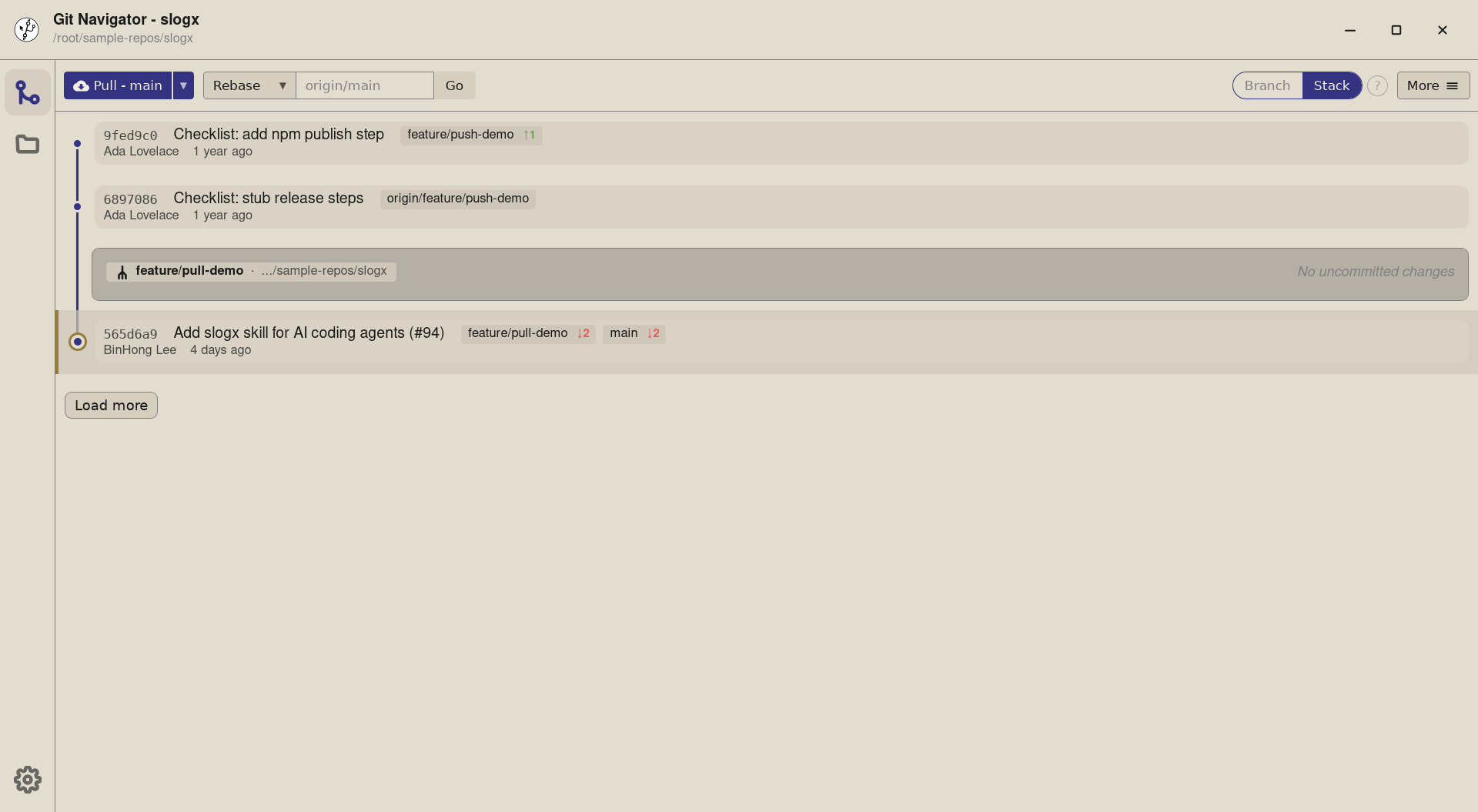
Step 1. On a non-default branch — here feature/pull-demo— the pull split button names its current target. The default mode is Pull - main: fetch + rebase the current branch ontoorigin/main. -
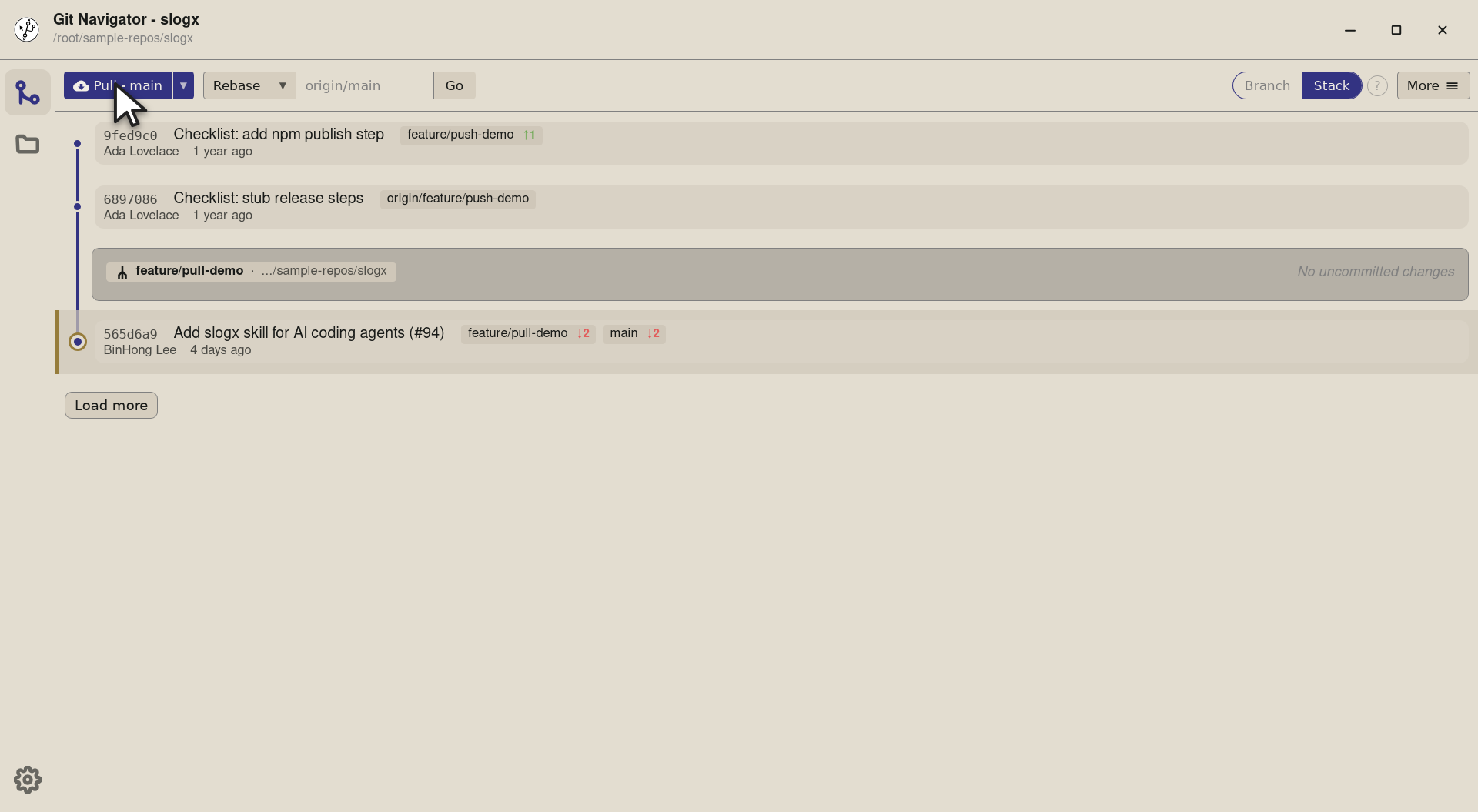
Step 2. Clicking the main button runs that exact strategy — no need to open the dropdown if the default is what you want. The label always tells you what the next click will do. -
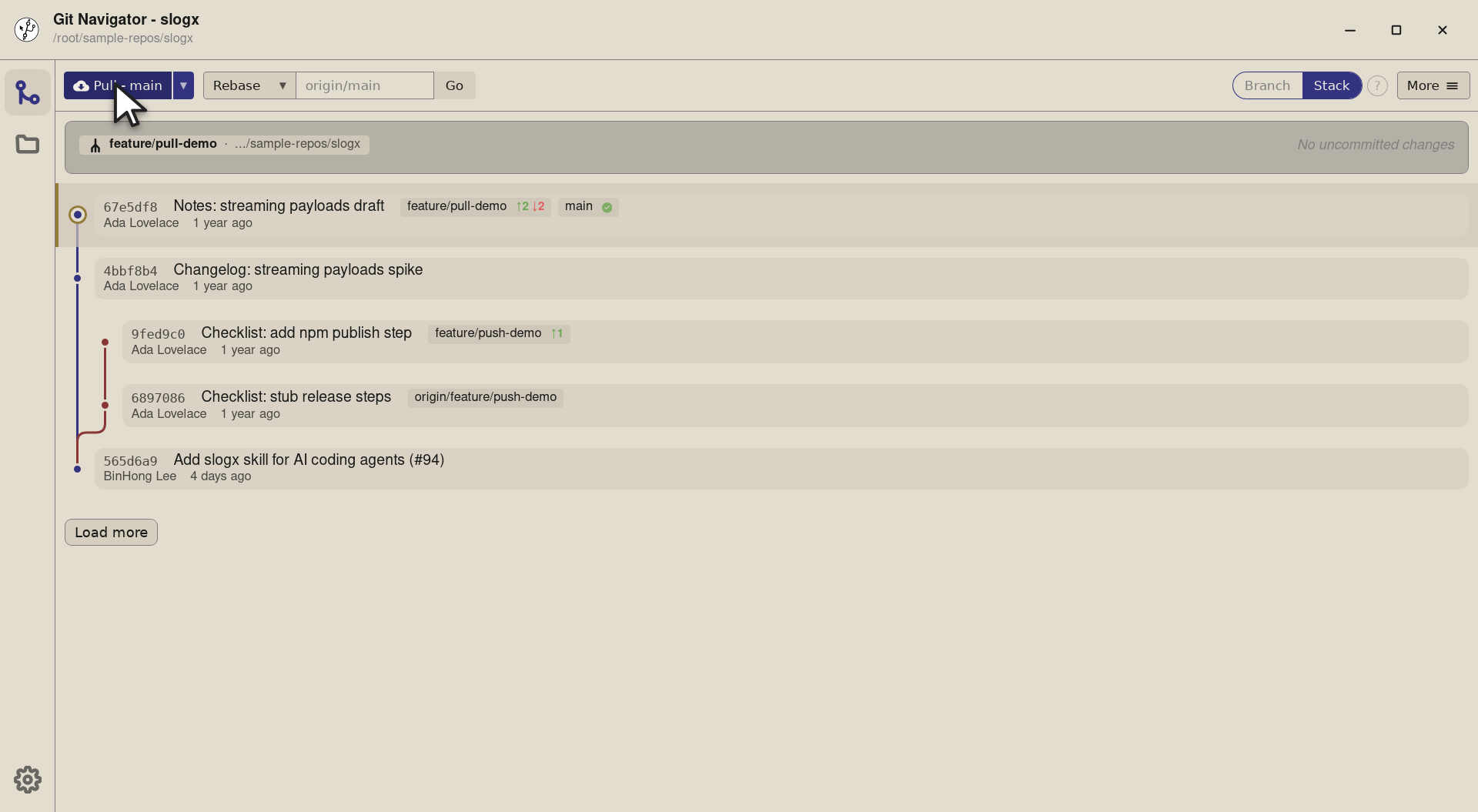
Step 3. Git Navigator runs git fetchthengit rebase origin/main— your feature branch lands on top of the latest default. The graph re-renders with the new topology in place.


-
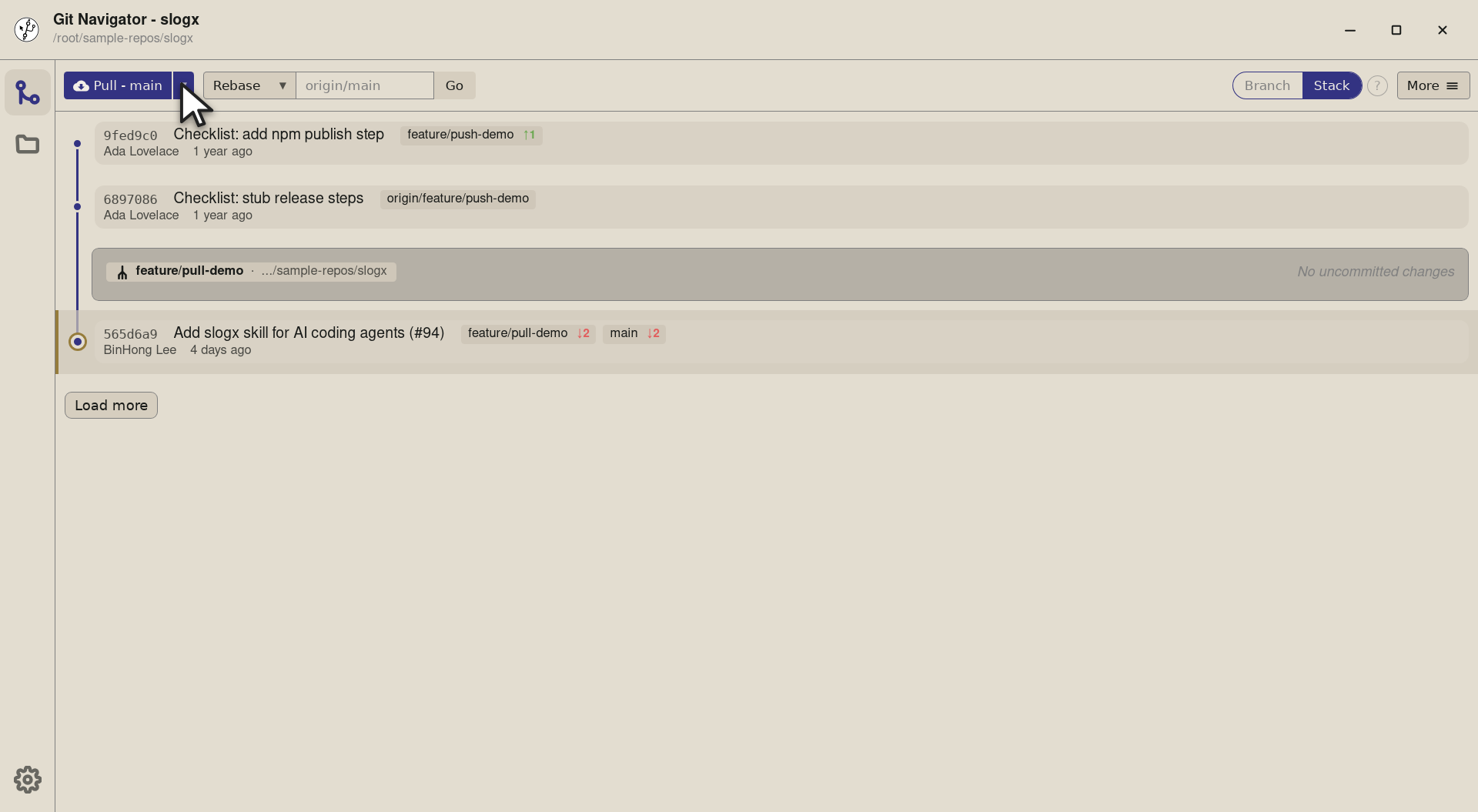
Step 1. To switch strategies, open the dropdown next to the pull button. The chevron appears whenever you're on a non-default branch — three rows, each labelled with the git command behind it. -
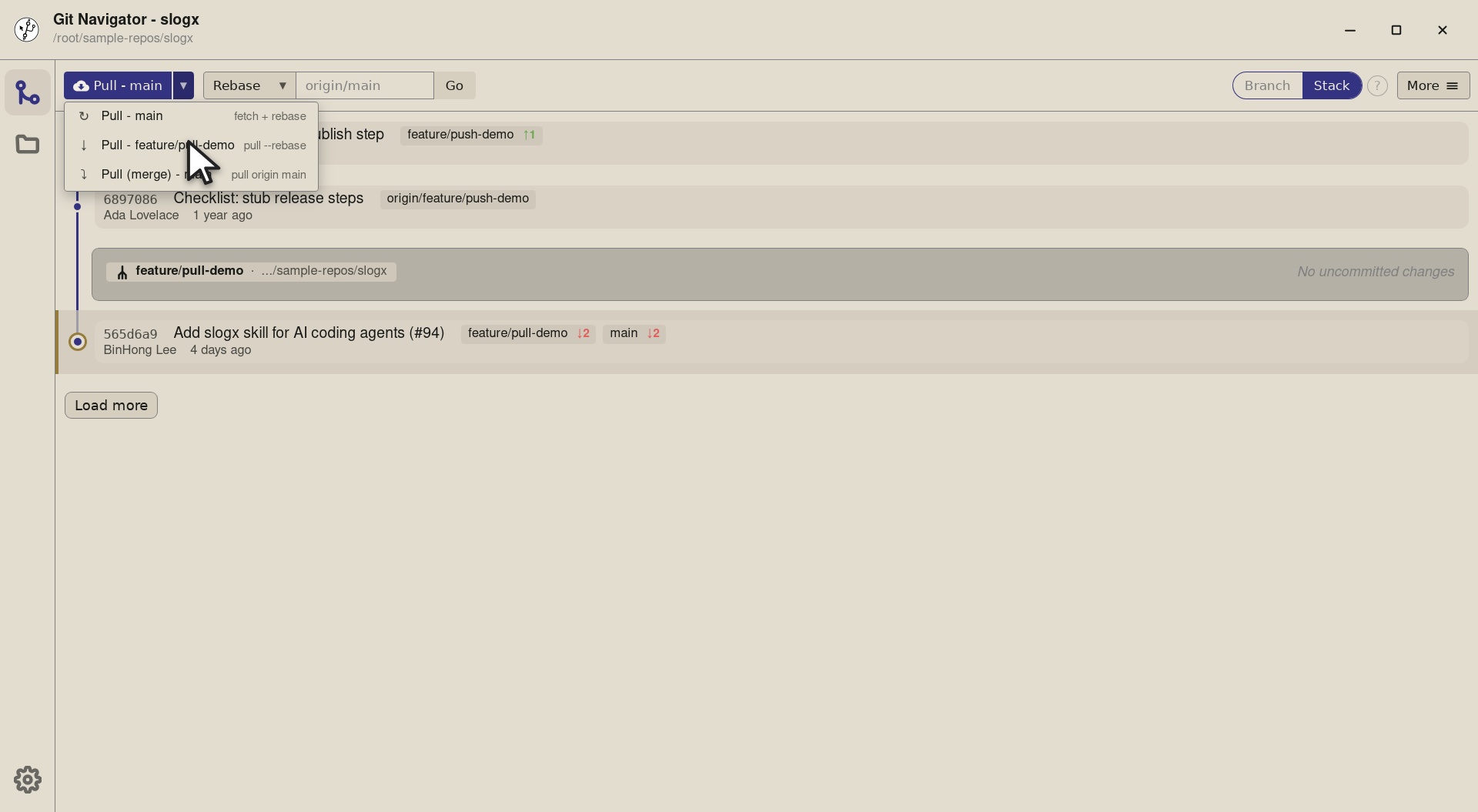
Step 2. The middle row — Pull - feature/pull-demo — runs git pull --rebaseagainst the current branch's own upstream. Use this when your feature has a remote counterpart that's drifted ahead of you (a teammate pushed, or a CI bot updated it). -
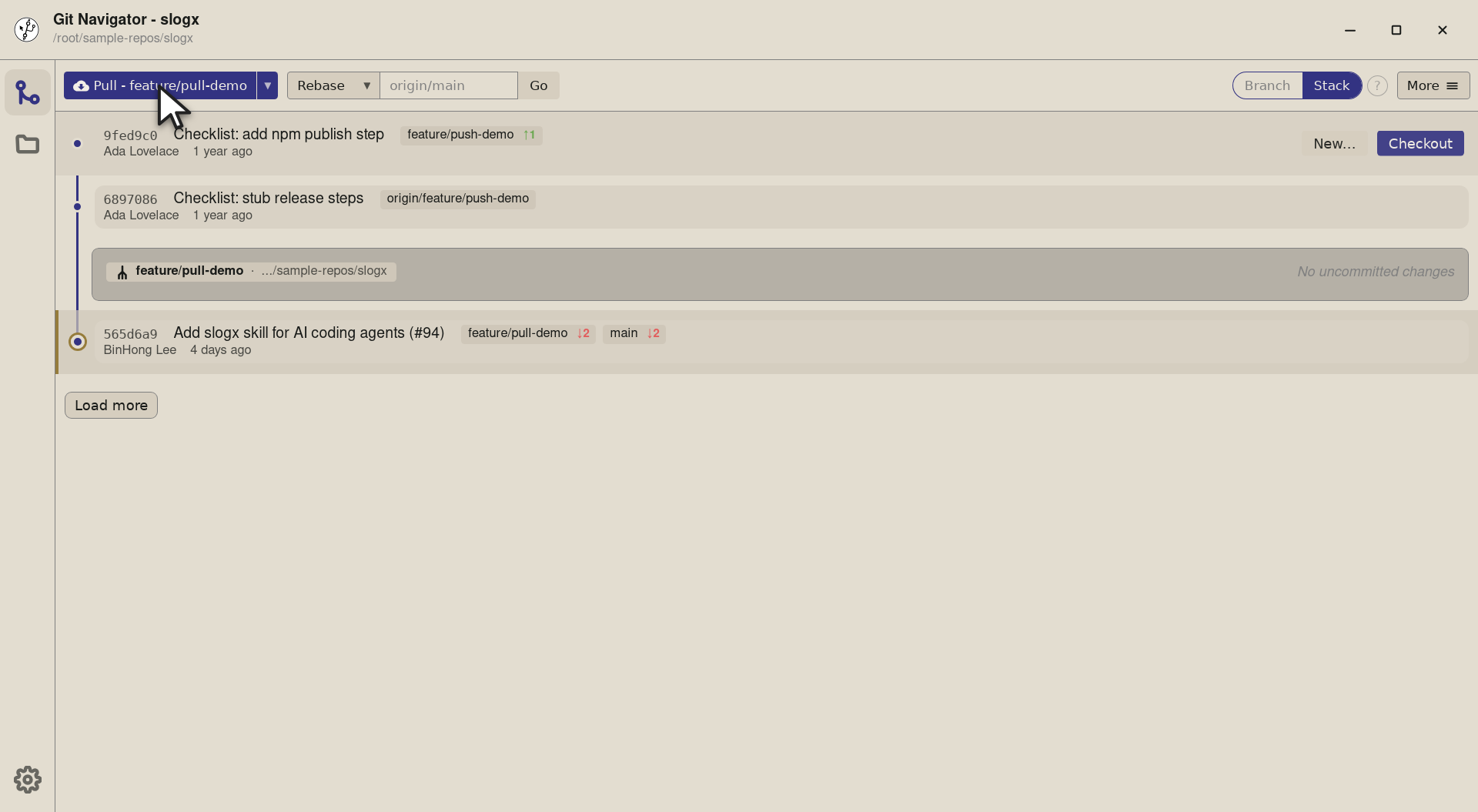
Step 3. Picking a row updates the main button's label and target — it doesn't pull yet. The label now reads Pull - feature/pull-demo so a subsequent click will run the current-rebase strategy against the upstream. -
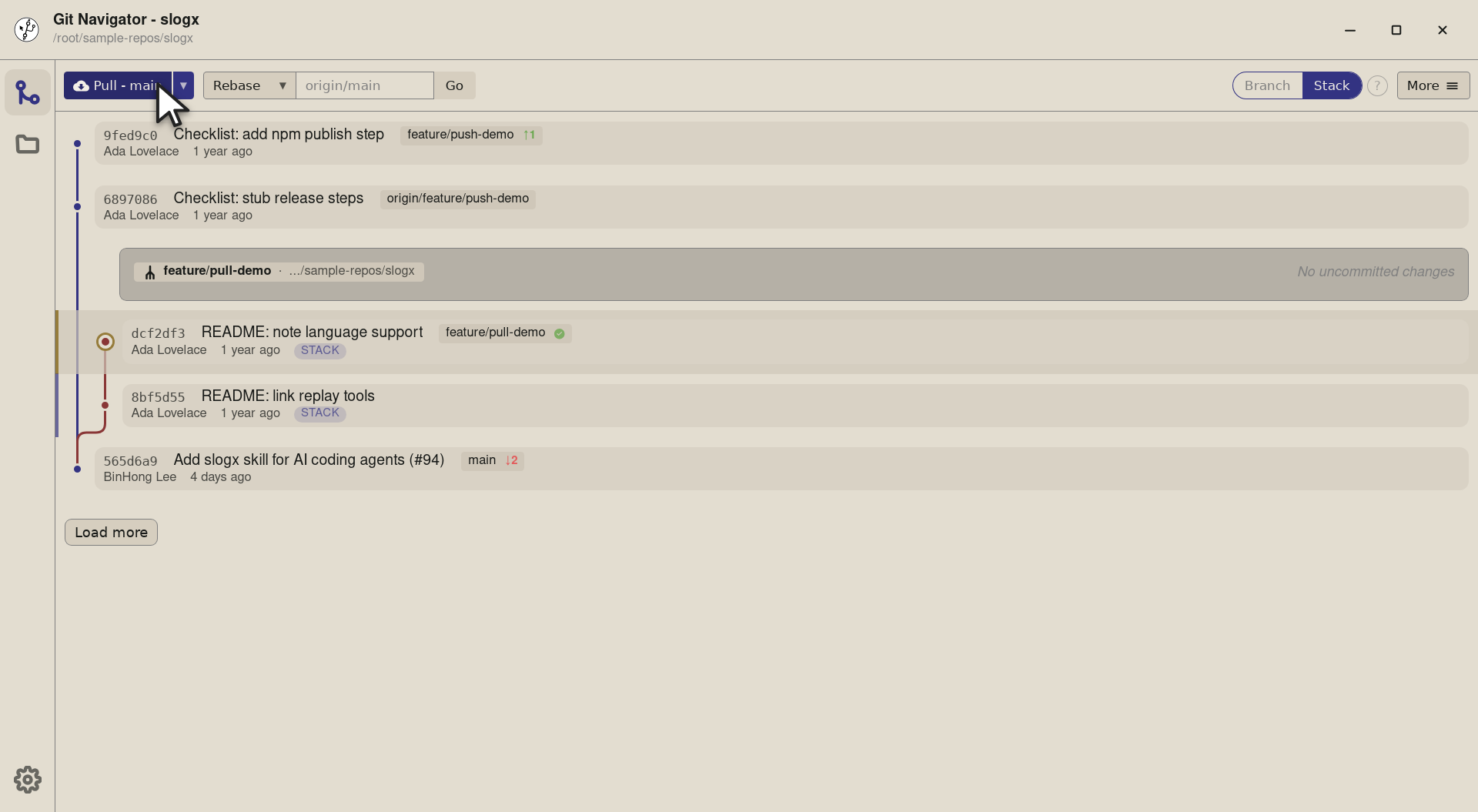
Step 4. The actual pull: git pull --rebaseon the current branch's upstream. The graph fast-forwards (or rebases) onto the new tip and the dropdown stays primed on this mode for the next time you sync.


-
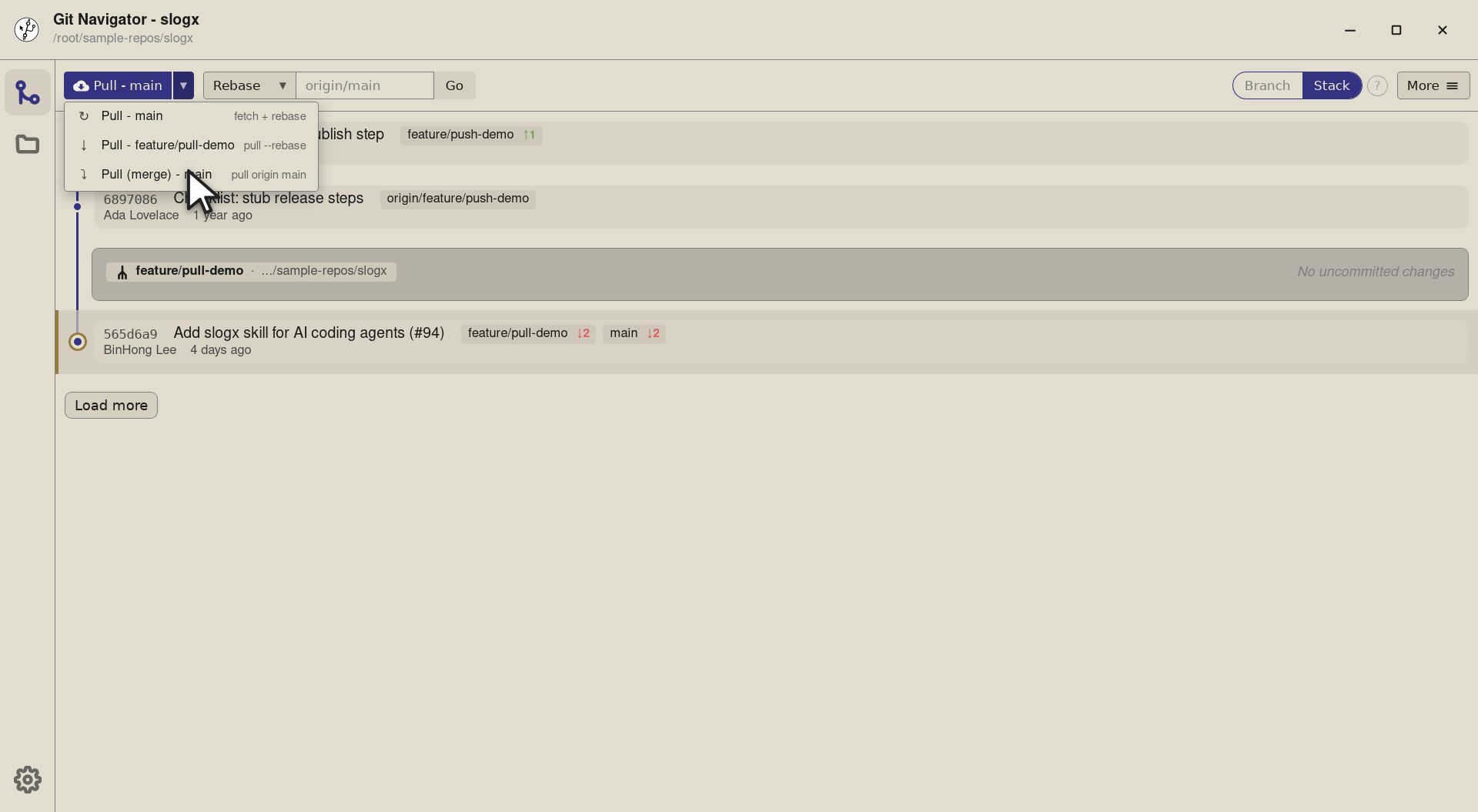
Step 1. The third row — Pull (merge) - main — runs git pull origin main(no--rebase). Picks this when your team prefers an explicit merge commit on integration branches over a rewritten history. -
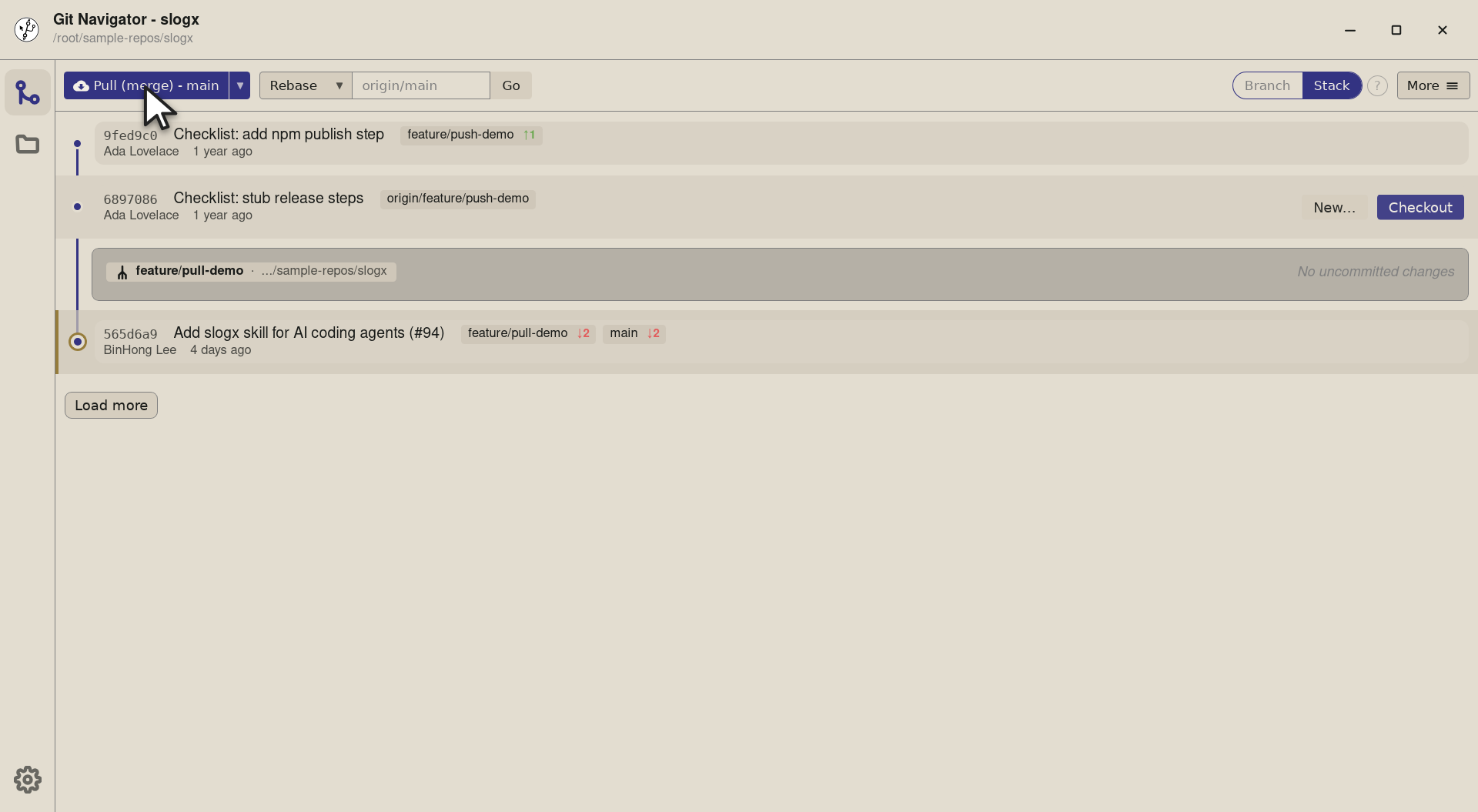
Step 2. The button label updates to Pull (merge) - main. The dropdown closes; the strategy choice persists on the button until you change it again. -
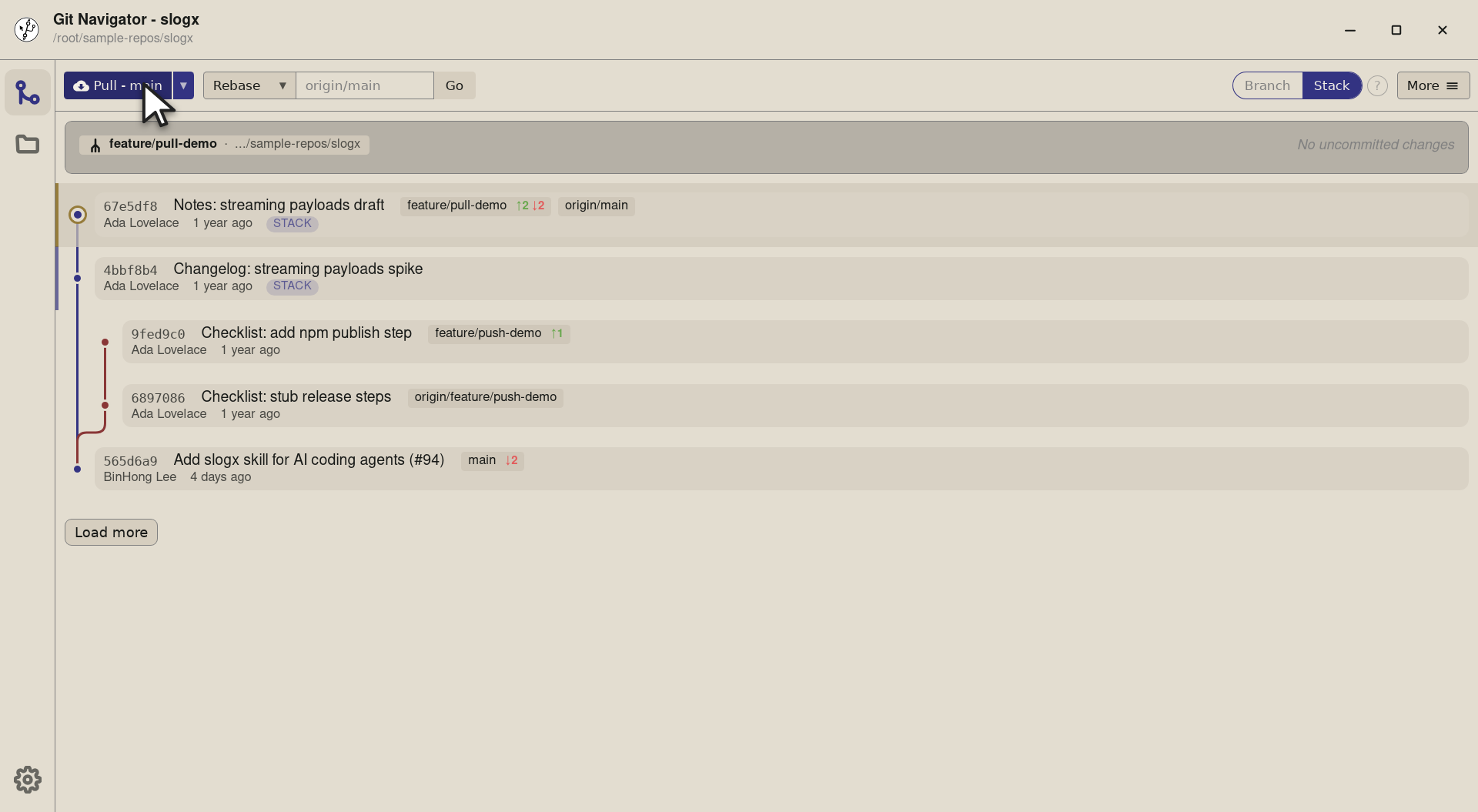
Step 3. Click and Git Navigator runs git pull origin main. The new graph shows the merge commit explicitly — useful when reviewers want to see where the integration happened rather than a fast-forward.


Picking a pull strategy
- Check out your branch. The pull split button appears at the top of the graph. On the default branch the chevron is hidden (only one strategy makes sense); on a feature branch the dropdown opens up the three modes.
- Default-rebase keeps features fresh. Use Pull - main to fetch and rebase the current branch onto
origin/main. A long-lived feature branch stays linear and current. - Current-rebase syncs the upstream. Use Pull - {branch} when your branch has a remote counterpart that's ahead of you and you want a clean fast-forward / rebase.
- Merge for integration branches. Use Pull (merge) - main when your team prefers an explicit merge over a rebase. The merge commit shows up in the graph.
Frequently asked questions
Why doesn't the dropdown chevron show on main?
On the default branch there's only one meaningful pull strategy (fetch + integrate the upstream), so Git Navigator hides the toggle to keep the toolbar uncluttered. The split button collapses into a single-click pull. The chevron returns the moment you check out a non-default branch.
What's the difference between Pull - main and Pull (merge) - main?
Both target the same remote branch (origin/main), but the strategy differs: Pull - main runs a fetch + rebase (current branch is replayed on top of origin/main), while Pull (merge) - main runs a fetch + merge (a merge commit lands in your history). Pick rebase for a linear history, merge for an explicit integration record.
Does Git Navigator remember my last-used pull mode?
Within a session, yes — picking a row from the dropdown updates the main button's label and that's what the next click runs. Switching branches resets the default to Pull - {default-branch}.
What happens if pulling produces a conflict?
Git Navigator pauses on its conflict view with every conflicted file listed and block-level keep-ours / keep-theirs / both actions. Once resolved, the rebase or merge continues automatically.
Can I pull from a specific ref that isn't my upstream?
Yes — use the Fetch control next to the pull button. Type any ref (like origin/release/0.0.x), pick Fetch + Rebase, and Git Navigator runs git fetch + git rebase {ref} against your current branch.